
Excel VLOOKUP Function
VLOOKUP Function
The VLOOKUP function is a premade function in Excel, which allows searches across columns.
It is typed =VLOOKUP and has the following parts:
=VLOOKUP(lookup_value, table_array,
col_index_num, [range_lookup])
Note: The column which holds the data used to lookup must always be to the left.
Tip: XLOOKUP and INDEX and MATCH can look to the left as well. See XLOOKUP and INDEX and MATCH.
Note: The different parts of the function are separated by a symbol, like comma , or semicolon ;
The symbol depends on your Language Settings.
Lookup_value: Select the cell where search values will be entered.
Table_array: The table range, including all cells in the table.
Col_index_num: The data which is being looked up. The input is the number of the column, counted from the left:
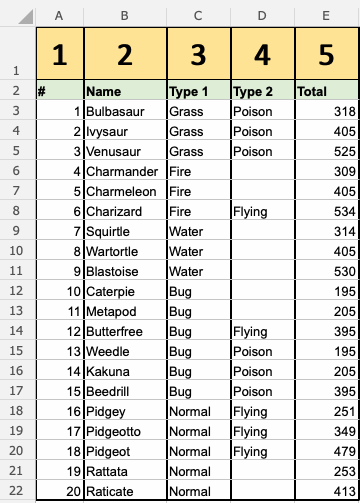
Range_lookup: FALSE (0) for an exact match, or TRUE (1) for an approximate match. Approximate match needs the first column sorted from smallest to largest. If you leave it out, TRUE is used.
Note: Both 1 / 0 and True / False can be used in Range_lookup. Use FALSE (0) when you need an exact match. It is the safe choice, and it works whether the first column is sorted or not.
How to use the VLOOKUP function.
- Select a cell (
H4) - Type
=VLOOKUP - Double click the VLOOKUP command
- Select the cell where search value will be entered (
H3) - Type (
,) - Mark table range (
A2:E21) - Type (
,) - Type the number of the column, counted from the left (
2) - Type True (1) or False (0) (
1) - Hit enter
- Enter a value in the cell selected for the Lookup_value
H3(7)
Let's have a look at an example!
Use the VLOOKUP function to find the Pokemon names based on their ID#:
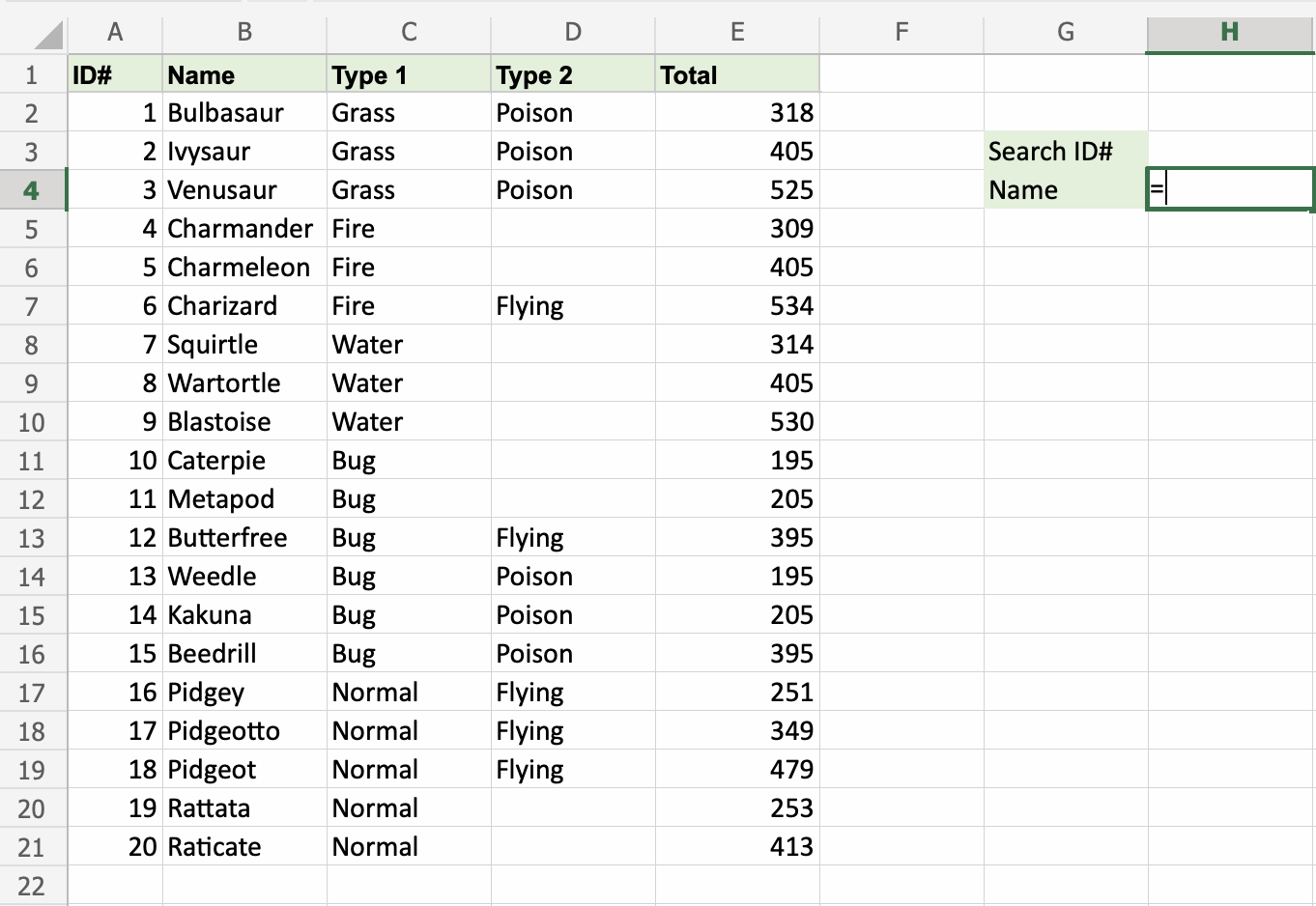
H4 is where the search result is displayed. In this case, the Pokemons names based on their ID#.
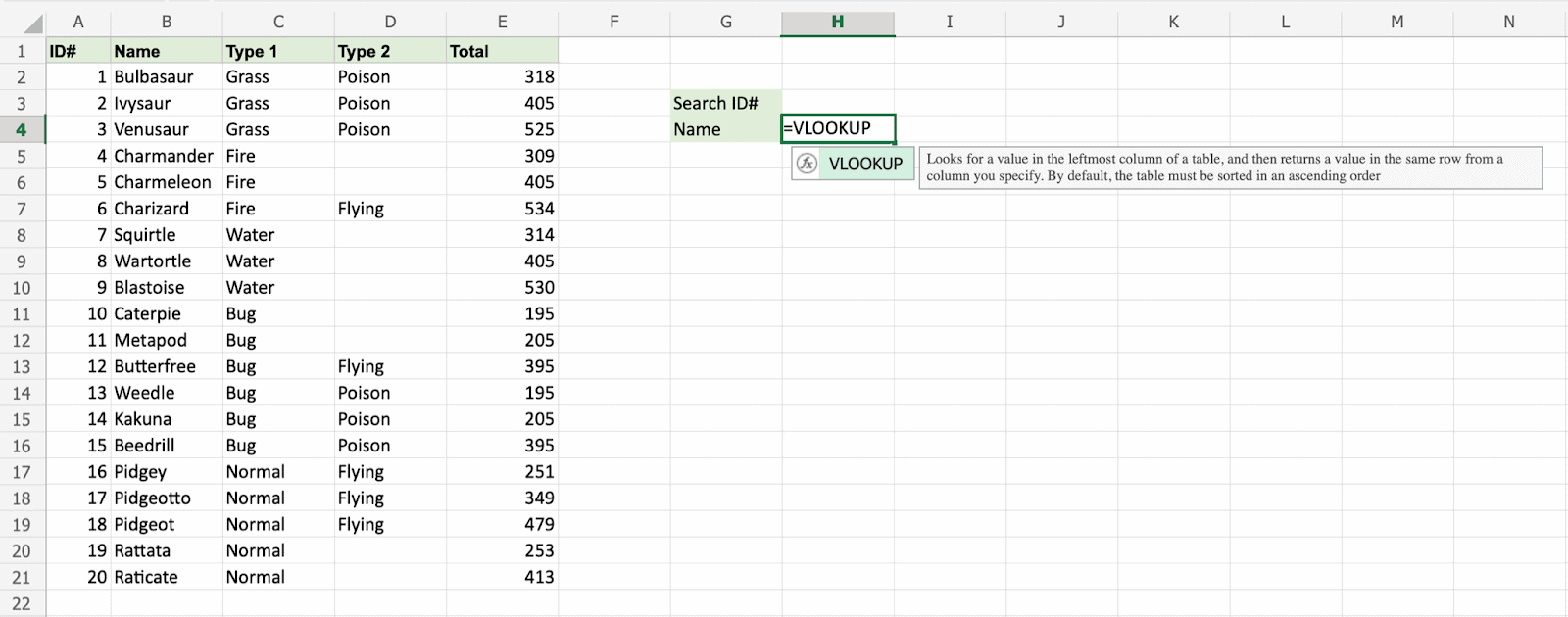
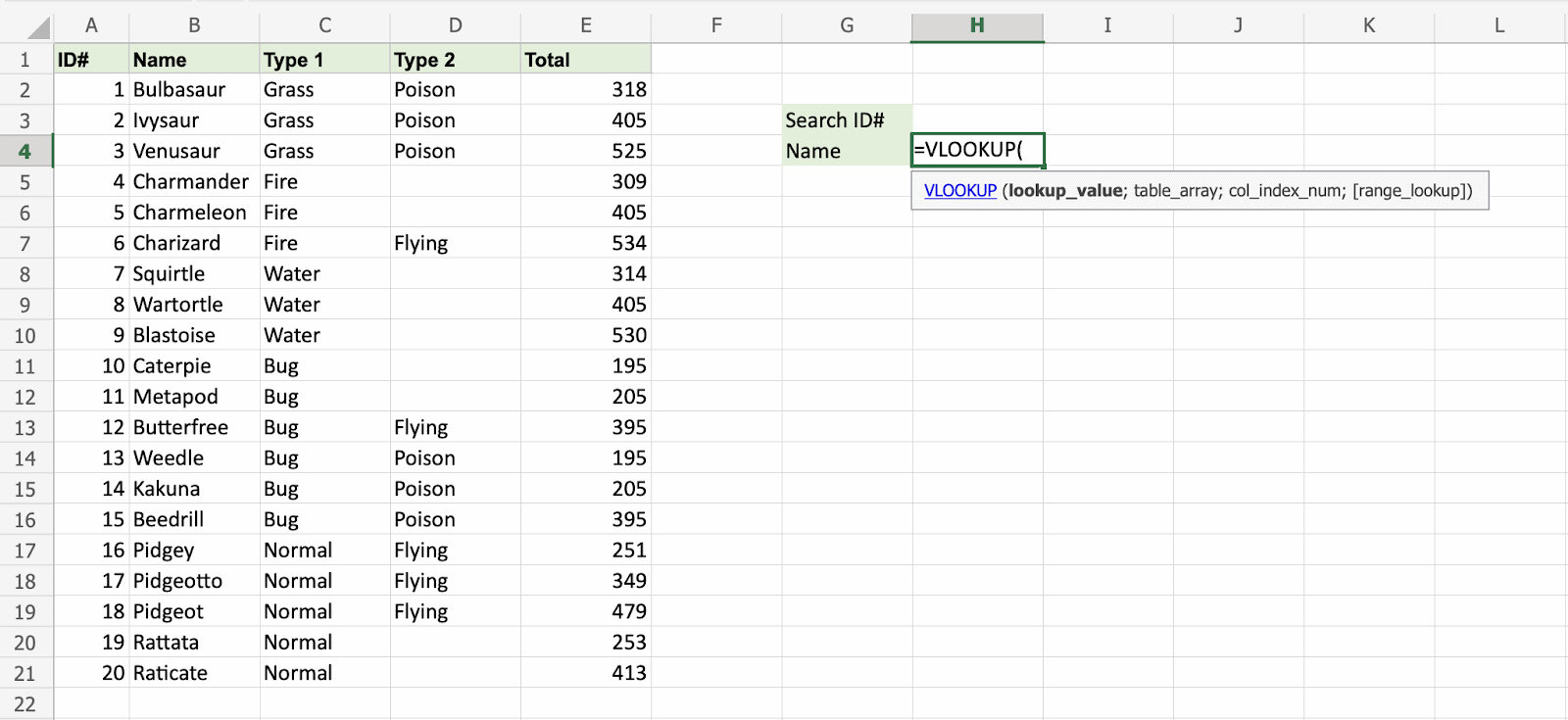
H3 selected as lookup_value. This is the cell where the search query is entered. In this case the Pokemons ID#.
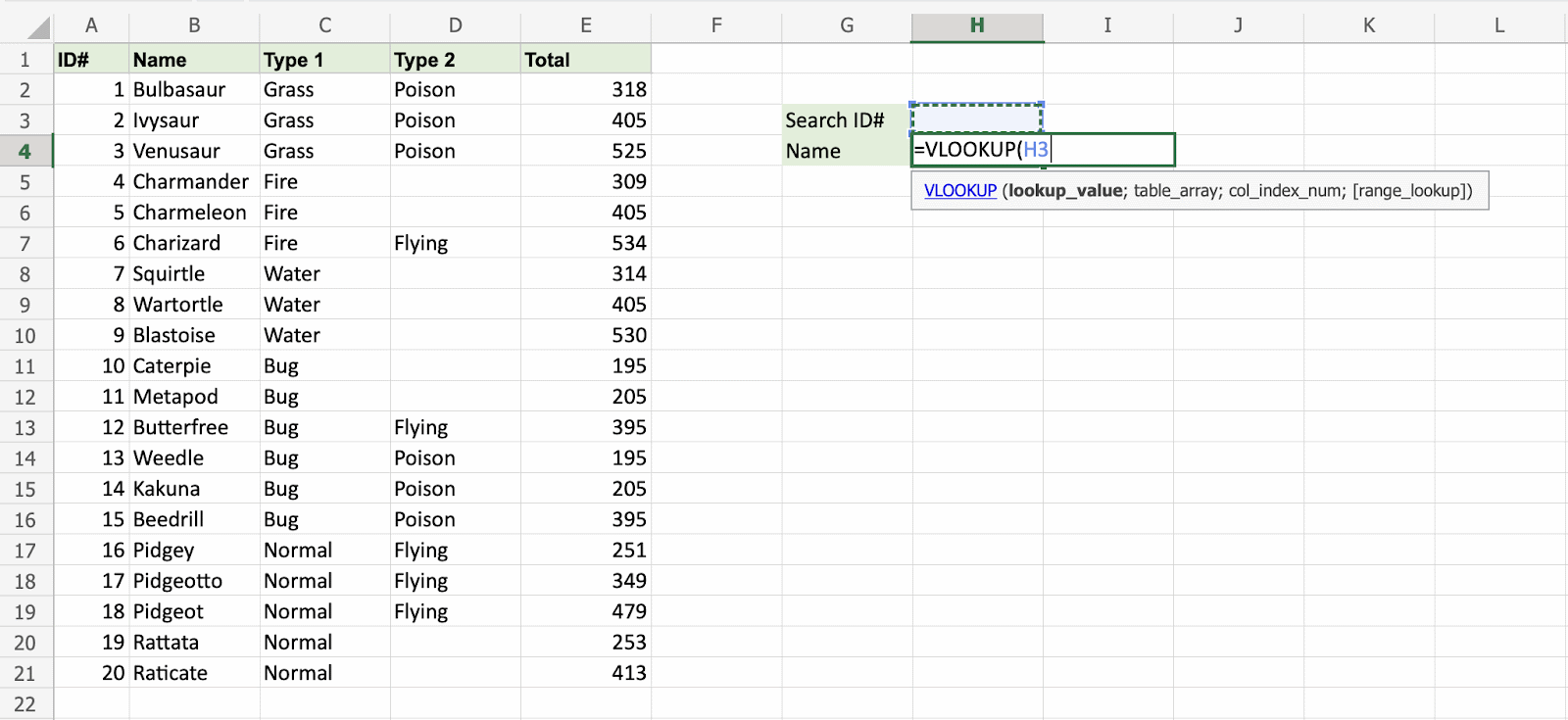
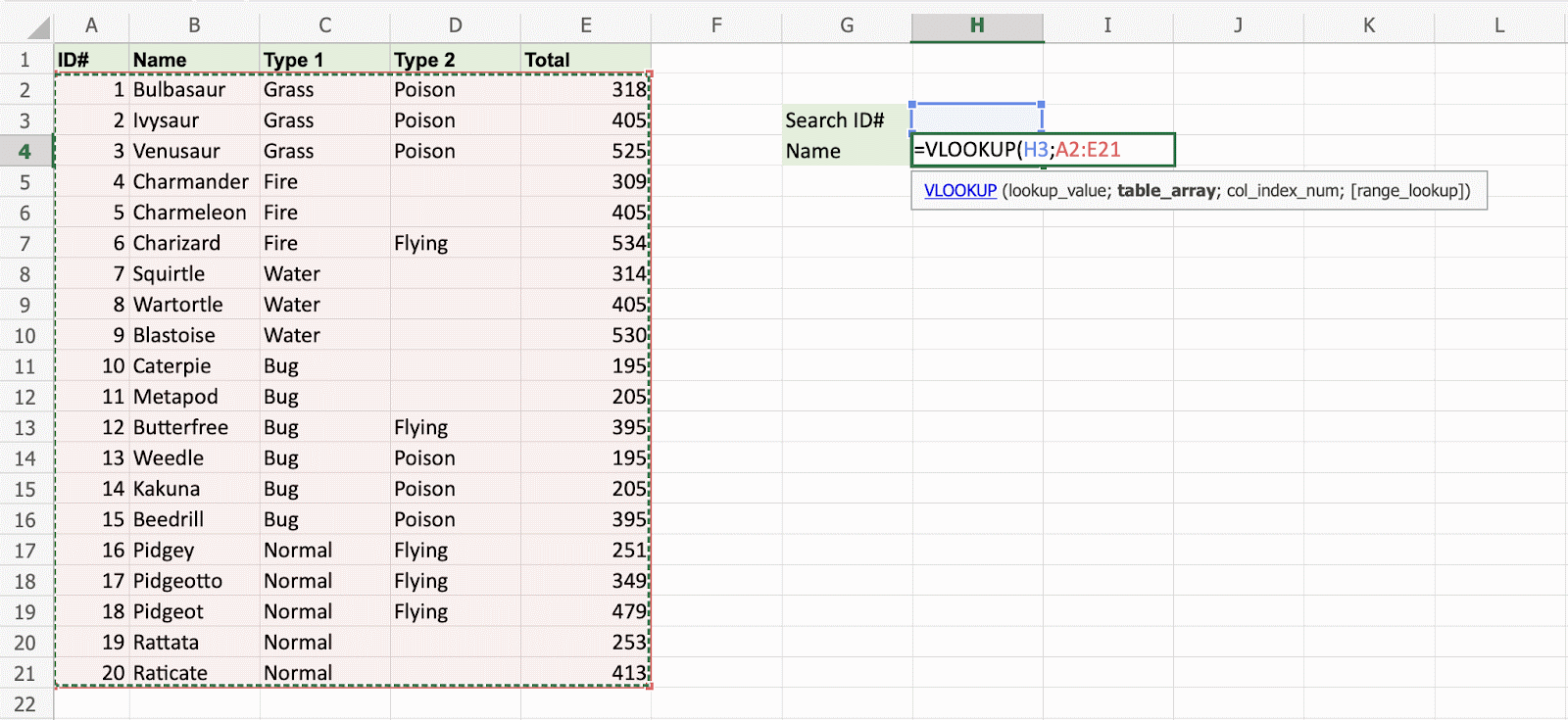
The range of the table is marked at table_array, in this example A2:E21.
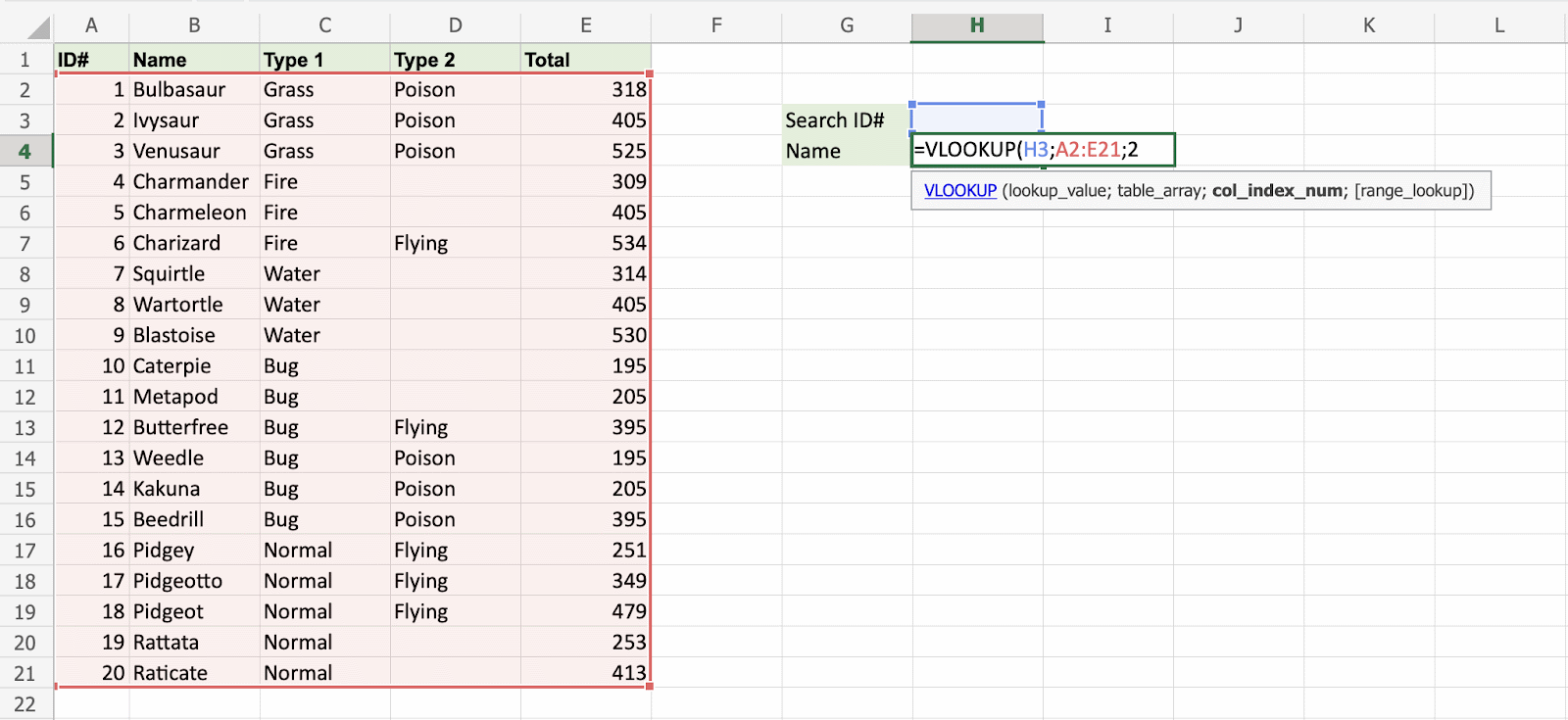
The number 2 is entered as col_index_number. This is the second column from the left and is the data that is being looked up.
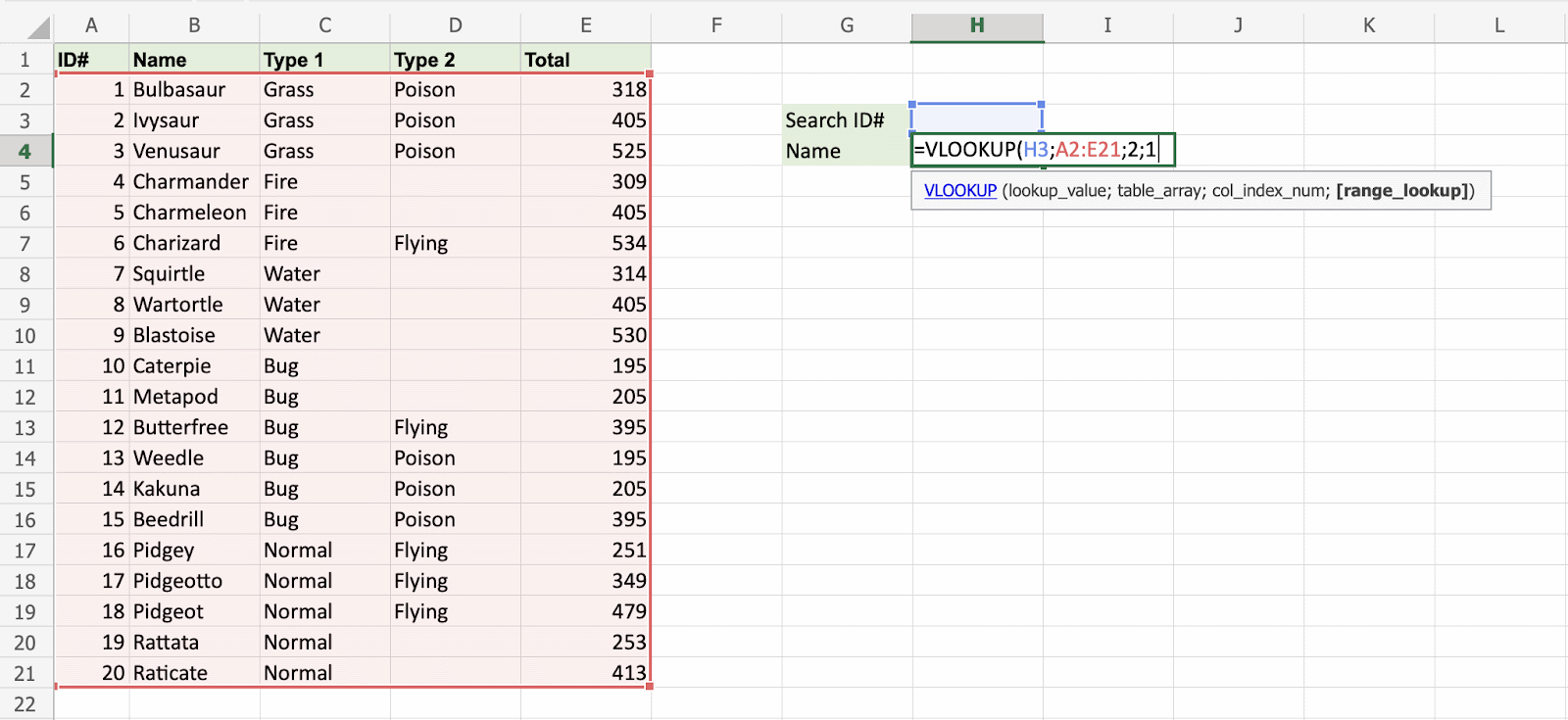
An illustration for selecting col_index_number 2.
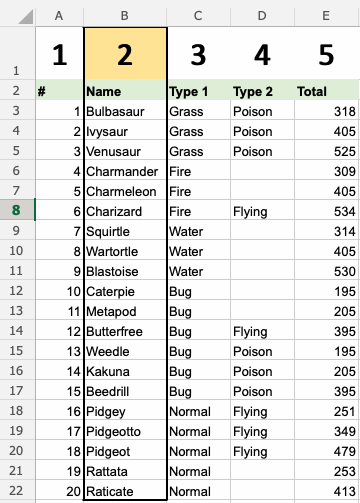
Ok, so next - 1 (True) is entered as range_lookup. This means approximate match. It works here because the ID# column is sorted from smallest to largest. For an exact match, 0 (False) is the safe choice, and it would find the same Pokemon here.
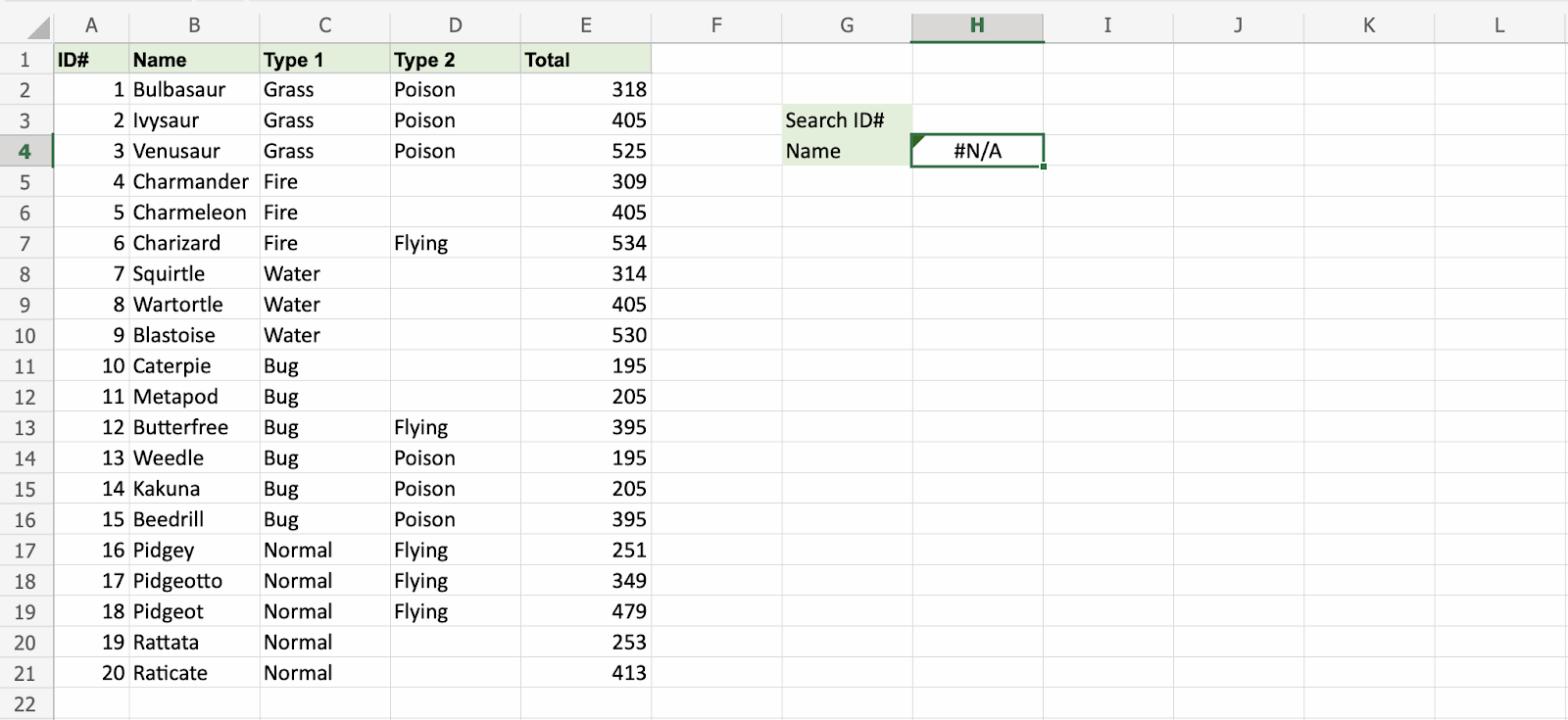
Good job! The function returns the #N/A value. This is because there have not been entered any value to the Search ID# H3.
Let us feed a value to it, type H3(7):
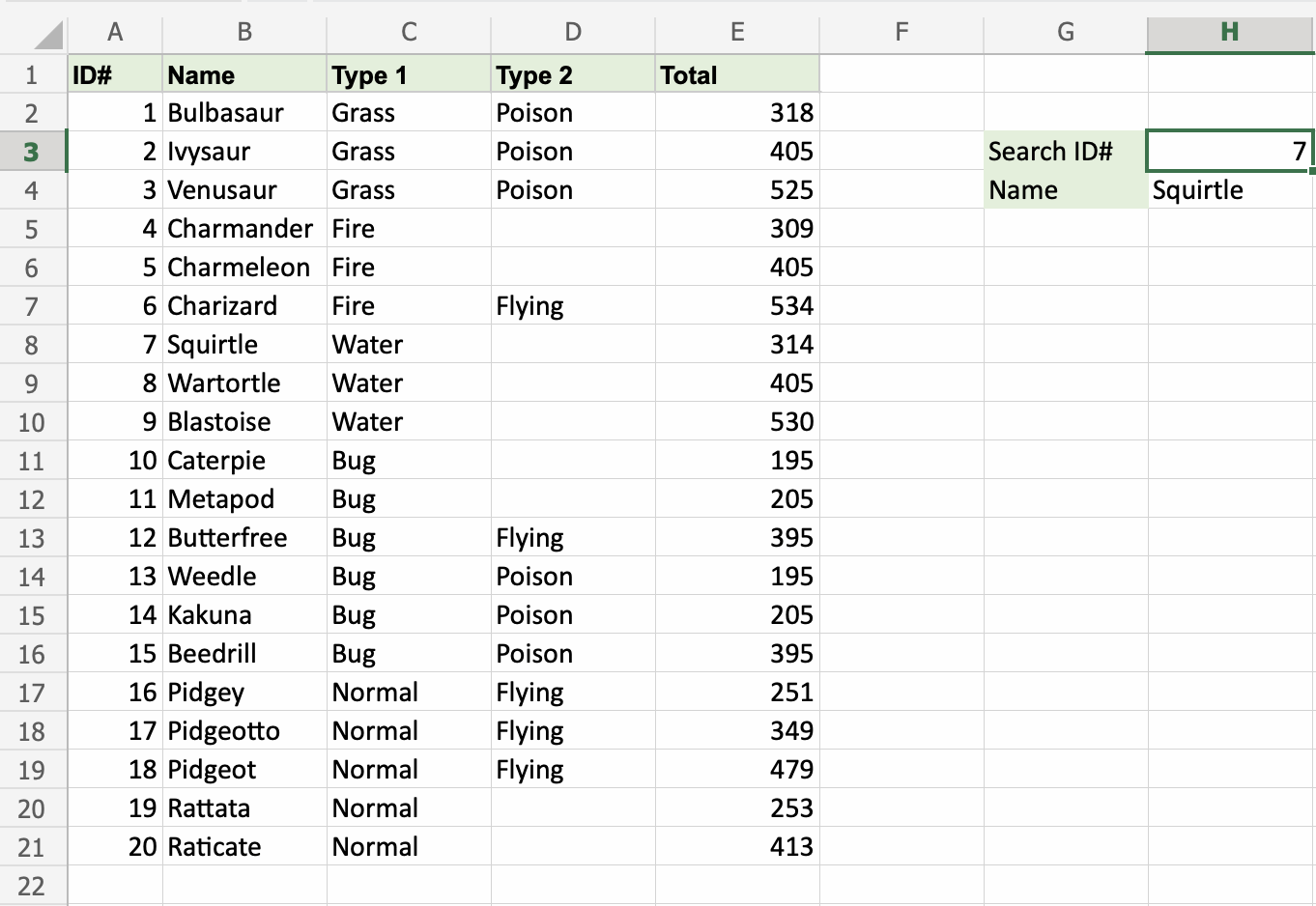
Have a look at that! The VLOOKUP function has successfully found the Pokemon Squirtle which has the ID# 7.
One more time, type (H3)4:
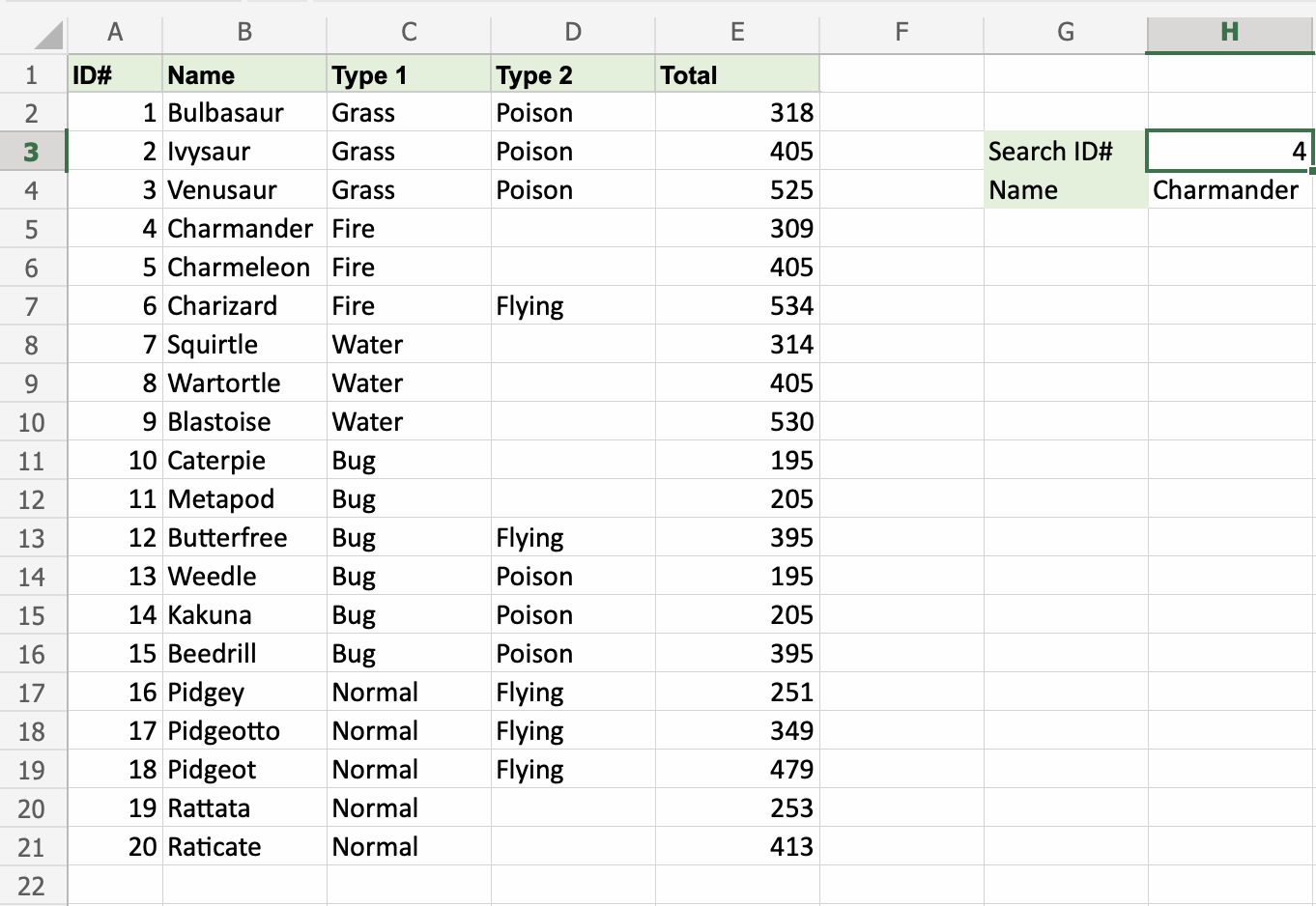
It still works! The function returned Charmanders name, which has 4 as its ID#. That's great.